

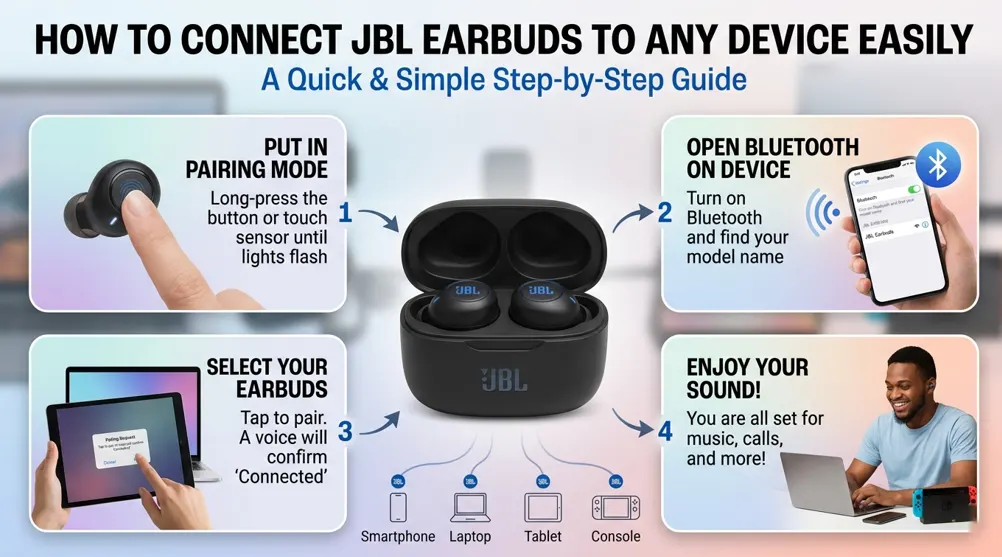
There is a specific kind of excitement that comes with unboxing a new pair of JBL earbuds. Whether you’ve snagged the latest JBL Live Pro 2, the rugged Reflect Flow, or the budget-friendly JBL Vibe series, that signature “JBL Pure Bass” is just moments away. However, before you can lose yourself in your favorite playlist or podcast, there is one small hurdle to clear the pairing process.
If you’ve been staring at your phone’s Bluetooth menu wondering why your device isn’t showing up, don’t worry – you aren’t alone. Bluetooth technology, while magical when it works, can occasionally be a bit finicky.
In this comprehensive guide, we will walk you through exactly how to connect JBL earbuds to any device, troubleshoot common pairing headaches, and ensure you’re getting the most out of your audio experience.
Preparing Your Earbuds for First-Time Use
Before we dive into the technical “how-to,” let’s make sure the basics are covered.
- Remove the Protective Film: Most new JBL earbuds have a tiny plastic film over the charging pins. If you don’t remove this, they won’t charge or turn on properly.
- Charge Them Up: Even if they come with some “juice” out of the box, it’s best to give them a 30-minute charge. Low battery levels can cause the Bluetooth signal to be weak or unstable.
- Understand the Lights: JBL uses LED indicators to talk to you. Usually, a blinking blue light means the earbuds are in “Pairing Mode.” A solid light usually means they are connected or fully charged.
How to Connect JBL Earbuds to an Android Device
Android users have it fairly easy thanks to Google’s integration with modern Bluetooth peripherals.
Using Google Fast Pair
Most modern JBL models support Google Fast Pair. Here’s how it works:
- Ensure your Android phone is unlocked and Bluetooth is turned on.
- Open the charging case or remove the earbuds.
- A pop-up notification should appear on your phone screen asking if you’d like to pair the device.
- Tap “Connect,” and you’re done!
The Manual Method
If the pop-up doesn’t appear, follow these steps:
- Go to Settings > Connected Devices > Pair New Device.
- Take your JBL earbuds out of the case. They should automatically enter pairing mode.
- Look for the model name (e.g., “JBL Tune 230NC”) in the list of available devices.
- Tap the name to finalize the connection.
How to Connect JBL Earbuds to an iPhone (iOS)
Connecting to an iPhone is just as straightforward, though it lacks the “one-tap” pop-up of Android.
- Open the Settings app on your iPhone and tap Bluetooth.
- Ensure the Bluetooth toggle is On (Green).
- Take your earbuds out of their case. If they are new, they will start flashing blue.
- Under the “Other Devices” section at the bottom of the Bluetooth screen, your JBL earbuds will appear.
- Tap the device name. Once it moves to the “My Devices” list and says “Connected,” you are ready to rock.
Looking for the best options? Check out our complete guide on How to Connect JBL Earbuds to Any Device Easily
How to Connect JBL Earbuds to a Windows PC or Mac
Using your earbuds for Zoom calls or late-night gaming? Connecting to a computer requires a few extra clicks.
On Windows 10 & 11
- Click the Start menu and select Settings (the gear icon).
- Navigate to Bluetooth & Devices.
- Click Add Device and select Bluetooth.
- Put your JBL earbuds into pairing mode (usually by holding the touch sensor for 3-5 seconds if they aren’t already flashing).
- Select your earbuds from the list. Windows 11 often supports Swift Pair, which may show a notification in the bottom right corner of your screen as soon as your earbuds are nearby.
On macOS
- Click the Apple Menu and go to System Settings (or System Preferences).
- Click Bluetooth.
- Ensure Bluetooth is on.
- Locate your JBL earbuds under the “Nearby Devices” or “Devices” list.
- Click Connect.
Mastering Pairing Mode (The Secret Sauce)
The biggest hurdle people face when learning how to connect JBL earbuds is failing to enter pairing mode correctly. If your earbuds are already paired to your laptop but you want to switch to your phone, they won’t just “show up” on your phone.
- For most models: Place the earbuds in your ears and hold the touch surface on both the left and right buds simultaneously for about 5 seconds.
- The “Double Tap” Method: Some models require you to tap once, then tap and hold the second time on the right earbud to force pairing mode.
- Case Button: Some JBL cases have a physical button. Pressing and holding this button while the lid is open is often the trigger for pairing.
The JBL Headphones App
If you want to go beyond a basic connection, you must download the JBL Headphones App (available on the Apple App Store and Google Play Store).
Once you know how to connect JBL earbuds to the app, a world of customization opens up:
- Equalizer (EQ) Settings: Want more bass? Or a “Jazz” profile? You can tweak the sound signature here.
- Active Noise Cancelling (ANC): Adjust how much of the outside world you want to hear.
- Firmware Updates: This is crucial. JBL frequently releases software updates that fix connection bugs and improve battery life.
- Find My Buds: If you misplace an earbud, the app can help you locate it by playing a high-pitched sound.
Common Troubleshooting: Why Won’t My JBL Earbuds Connect?
Even with the best tech, things can go sideways. If you’re struggling, try these quick fixes:
1. The “Forget and Re-Pair” Trick
Sometimes the “handshake” between your phone and earbuds gets corrupted. Go to your Bluetooth settings, find your JBL earbuds, and select “Forget This Device.” Restart your Bluetooth and try the pairing process from scratch.
2. Check for “Dual Connect” Issues
Many JBL buds feature Dual Connect, meaning one bud can work independently. If only one is connecting, place both back in the case, close it for 10 seconds, and take them both out at the same time. This usually re-syncs the left and right channels.
3. Reset to Factory Settings
If all else fails, a factory reset is the “nuclear option.”
- Process: Typically, you place the buds in the case and long-press the touch sensors on both buds for 10-15 seconds until the LEDs flash a specific color (often white or red). This wipes the memory of all previously paired devices.
4. Software Interference
In the USA, we are surrounded by signals – Wi-Fi routers, microwaves, and other Bluetooth devices. If your connection is stuttering, try moving away from your router or other wireless electronics.
Benefits of Choosing JBL for Your Daily Audio
Knowing how to connect JBL earbuds is just the start. Why do millions of Americans choose this brand over competitors?
- Durability: Most JBL earbuds come with an IPX rating (like IPX7), making them sweatproof and rain-resistant – perfect for gym sessions in New York or runs in rainy Seattle.
- Battery Life: Many models offer up to 40 hours of total playtime with the charging case.
- Value for Money: You get premium sound quality that rivals brands like Apple or Bose but often at a fraction of the cost.
Frequently Asked Questions
Q1: Can I connect my JBL earbuds to two devices at once?
Yes, if your model supports Multi-Point Connection (like the JBL Live or Tour series). You can be paired to your laptop for a meeting and automatically switch to your phone when a call comes in.
Q2: Why is the sound only coming out of one earbud?
This usually means the earbuds have lost their sync with each other. Try placing them back in the charging case and removing them simultaneously, or perform a factory reset as described above.
Q3: How do I know if my JBL earbuds are in pairing mode?
Look for a rapidly flashing blue light on the earbud itself or the charging case. If the light is solid or off, it is likely already connected to a device or turned off.
Q4: Will JBL earbuds work with a smart TV? Absolutely! As long as your TV has built-in Bluetooth support, you can follow the same “Manual Method” used for PCs to pair your earbuds with your TV.
Final Thoughts
Learning how to connect JBL earbuds doesn’t have to be a frustrating experience. Whether you are using an iPhone, an Android, or a computer, the process is designed to be user-friendly and quick. By ensuring your device is in pairing mode and utilizing the JBL Headphones App, you can enjoy a seamless, high-quality audio experience every time.
Remember, if you ever run into a snag, the “Forget and Re-pair” method is your best friend. Now that you’re connected, it’s time to hit play and enjoy that legendary JBL sound!